This article will describe the steps for a Provider to configure Bobsled access to a Google BigQuery to be used as a source in Bobsled.
Setup instructions
Step1: Configure source in Bobsled
Log in to your Bobsled Environment.
Select Data Sources in the Left sidebar and then Add source at the top right of the page.
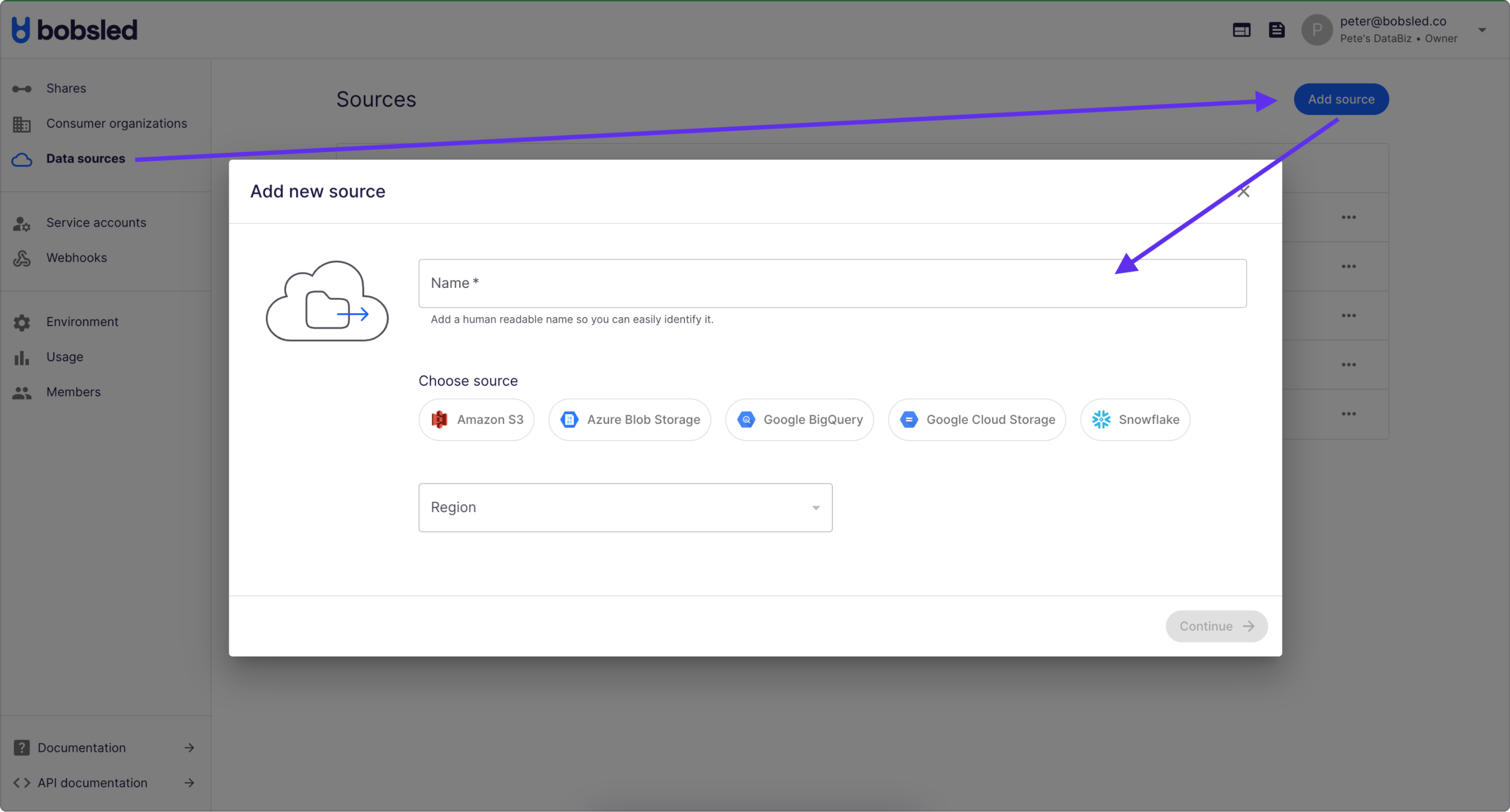
Enter a human-readable name to describe the source.
Select BigQuery and the region of your BigQuery account. Click Continue to move to the next step.
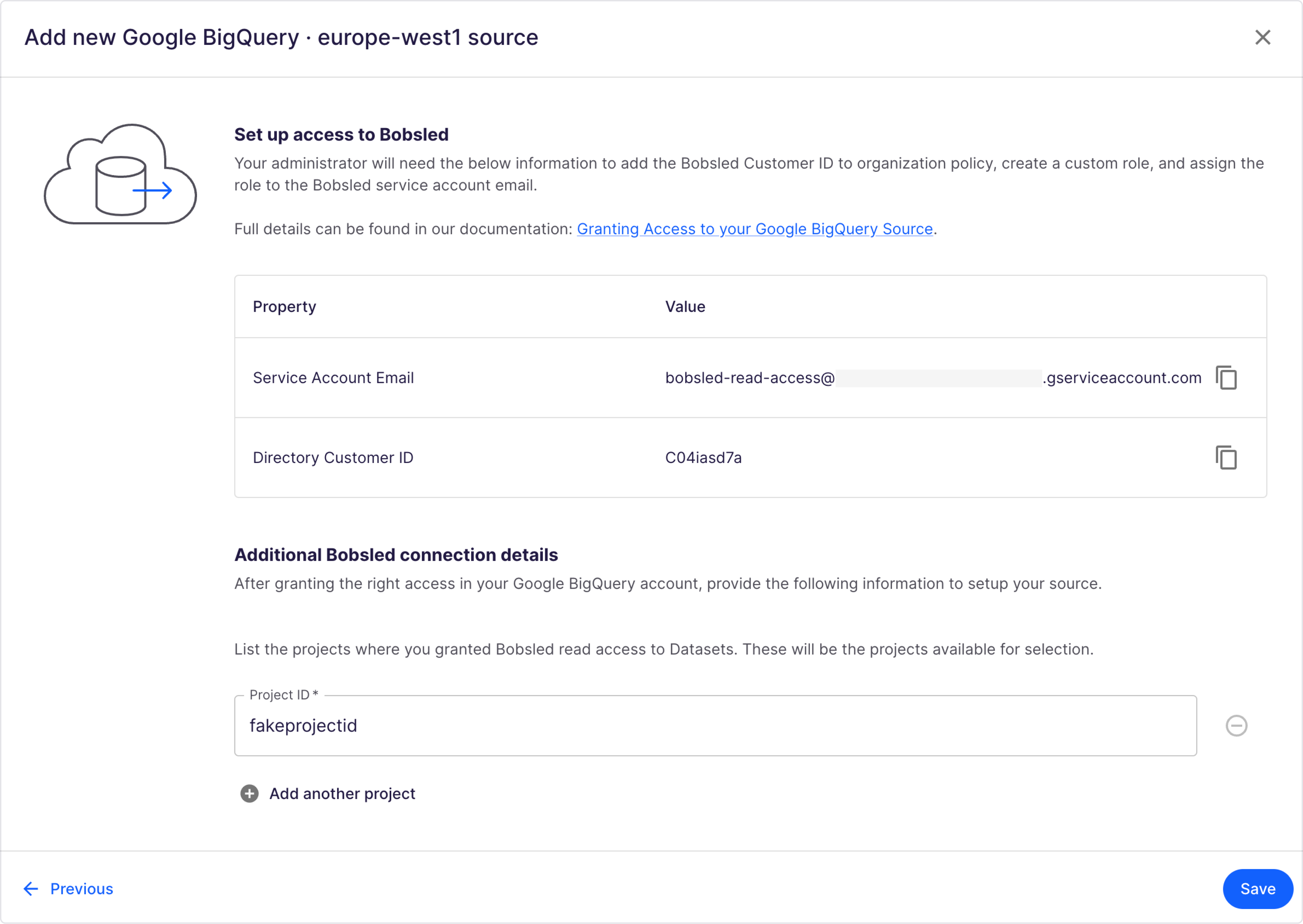
Copy the
Bobsled Service Account emailfor use in configuring access to Bobsled in your Google Cloud Project. Leave this tab open and log in to your Google Cloud Console in a new tab.
.png "GB1(1).png")
Step 2: Configure BigQuery Source in your Google Cloud Console
Bobsled needs to assume the BigQuery Data Viewer role to connect your specified datasets to the Bobsled platform. You will use the service account email you copied from your Bobsled environment for each.
Granting access to your BigQuery dataset(s)
Log in to the Google Cloud Platform Console as a project editor.
From the Home dashboard, Select BigQuery.
Navigate the BigQuery Explorer panel to find the dataset(s) you want to connect to Bobsled. For each dataset, select the vertical ellipsis > Share > Manage Permissions.
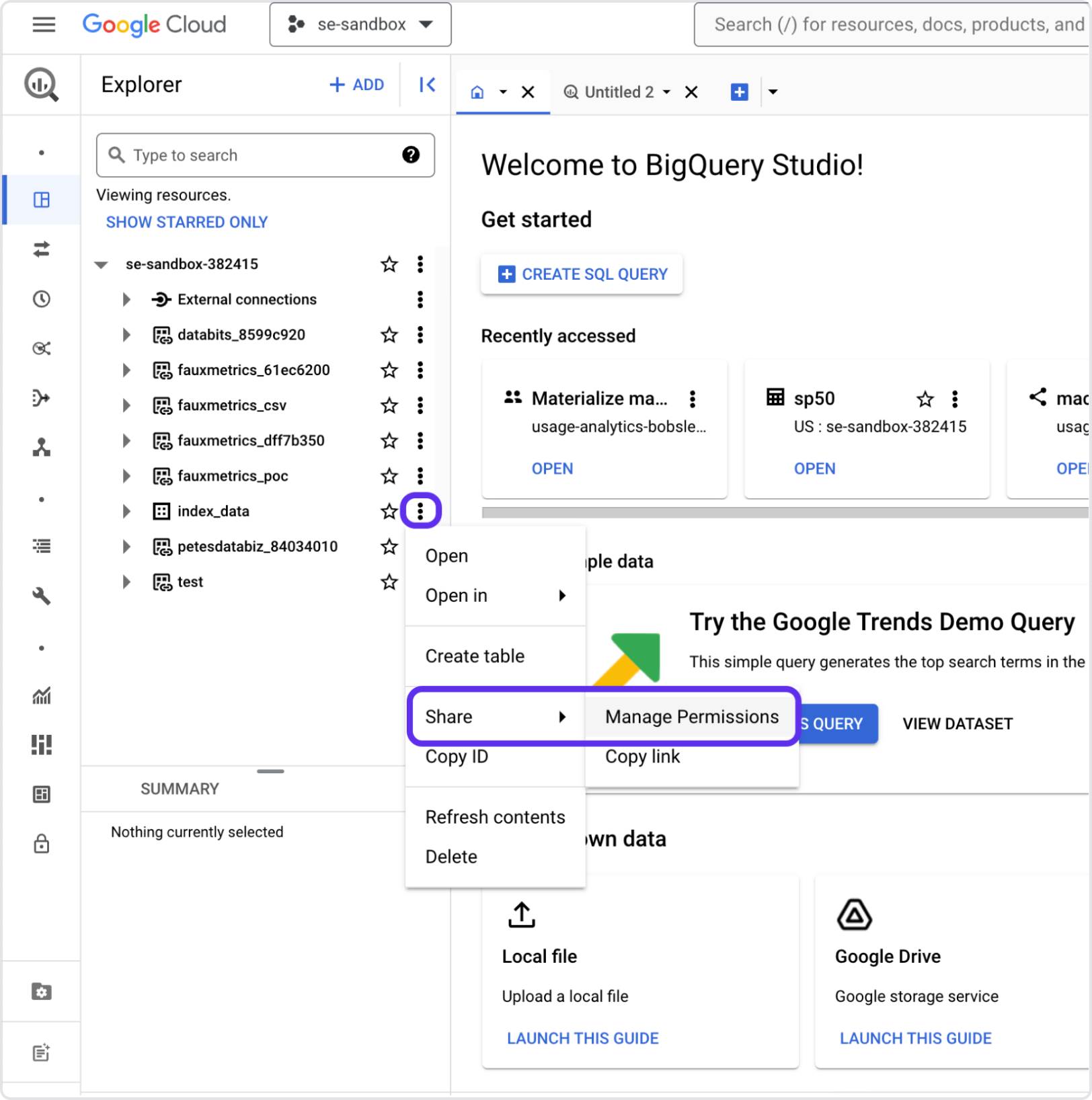
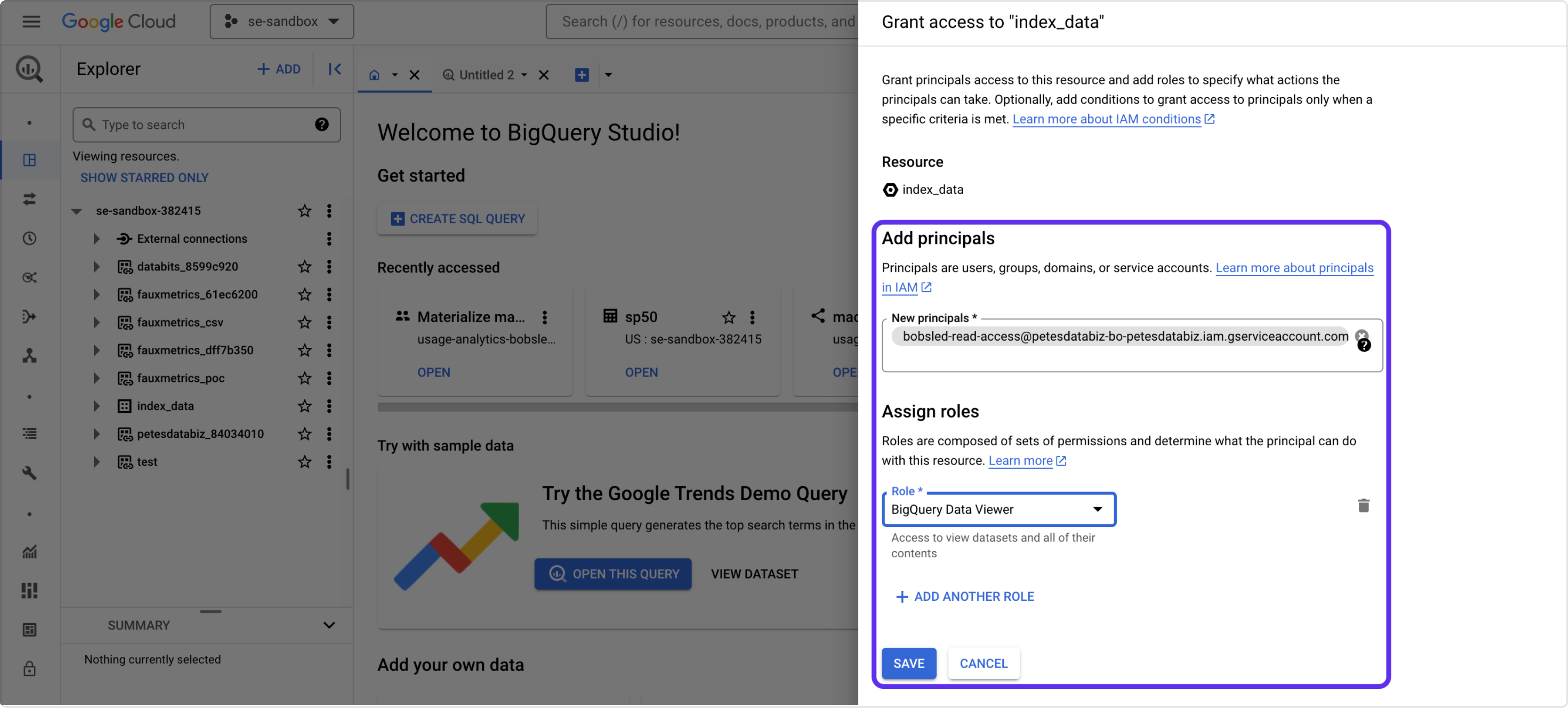
Select ADD PRINCIPAL in the top right.
Add the same Bobsled Principal as above in the 'New principals *' section. Add the Big Query Data Viewer role and hit SAVE.
NOTE:
If any dataset you share contains views, Bobsled must also be able to read the underlying data those views reference. Grant the BigQuery Data Viewer role to the Bobsled service account on every dataset the views read from as well — or configure them as authorized views on those datasets. Granting access only to the dataset that contains the view is not enough, and transfers will fail with a permission error when they run.
Step 3: Finish source configuration in Bobsled
Grab the BigQuery Project ID from your Google Cloud console where your data lives and return to the source setup page in the Bobsled UI.
Enter the relevant
Project ID(s)and hit Save.
Once you’ve successfully configured your Source, you can add it to a Share or start syncing Sledhouse Tables and defining Data Products.
Troubleshooting
A transfer or sync fails with a “permission to query table” error
If a transfer or Sledhouse sync fails with an error such as User does not have permission to query table …, or perhaps it does not exist, the Bobsled service account is missing read access to that object — or, if the object is a view, to one of the datasets the view reads from. Grant the BigQuery Data Viewer role to the Bobsled service account on the object’s dataset and on any datasets its views reference (or configure those as authorized views), then let the transfer retry.